


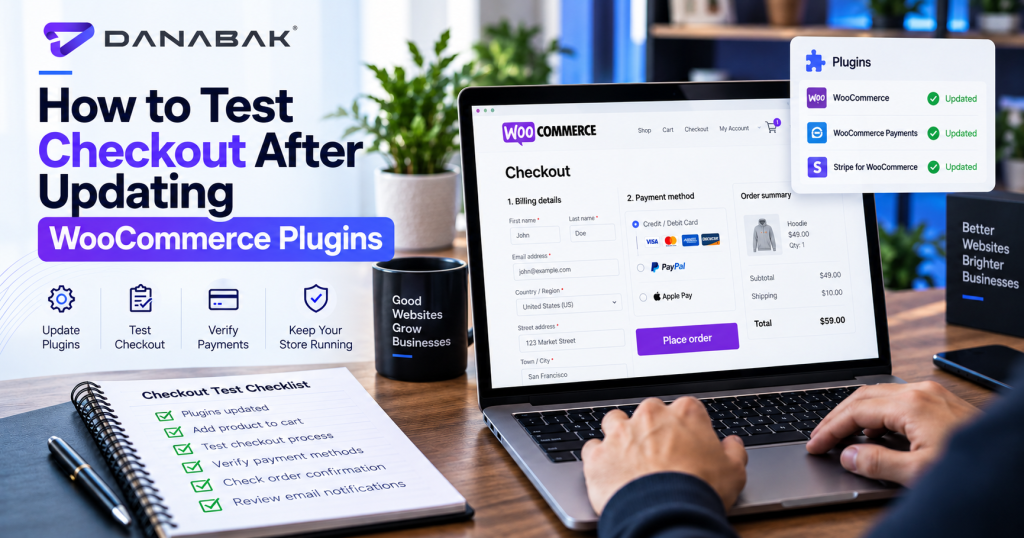
Updating WooCommerce plugins can improve security, compatibility, functionality, and performance, but an update can also affect the checkout process even when the website appears normal. A homepage may load correctly, product pages may look unchanged, and customers may still be able to add products to the cart while a payment method, shipping calculation, coupon, checkout field, or order-confirmation process has stopped working. Because checkout is one of the most commercially important parts of an online store, it should be tested whenever WooCommerce itself, the active theme, payment plugins, shipping extensions, caching tools, or other checkout-related plugins receive significant updates.
The most effective test follows the same journey a real customer would take. Checking only whether the checkout page opens is not enough because many failures appear only after a particular product type, shipping address, payment method, coupon, or customer status is used. A proper test therefore begins with the store environment and continues until the order has been created, payment status is correct, emails are delivered, and the store administrator can see the transaction properly.
Back Up the Store Before Updating
Before installing updates, create a current backup of the website files and database. WooCommerce stores important order, customer, product, and configuration information in the database, so a backup provides a recovery option if an update creates a serious compatibility problem.
If the store processes frequent orders, the timing of the backup matters because restoring an older database can overwrite transactions created after that backup. For higher-volume stores, major plugin updates are usually safer when first tested in a staging environment that reflects the live configuration as closely as possible. The objective is not merely having a backup available but reducing the likelihood that a live rollback will ever become necessary.
Record the Checkout Setup Before Making Changes
Before updating, note which systems currently participate in checkout. This includes payment gateways, shipping plugins, tax tools, coupon systems, product add-ons, subscription plugins, checkout-field editors, fraud-prevention tools, analytics scripts, email-delivery services, and caching or optimisation plugins.
This record gives you a better testing plan after the update. If a payment plugin was updated, payment behaviour deserves extra attention. If a shipping extension changed, several destination addresses should be tested. If WooCommerce itself received a major update, the entire checkout flow should be reviewed because many connected plugins depend on WooCommerce functionality.
Test the Store as a Guest Customer
Begin with a guest checkout when the store allows customers to purchase without creating an account. Open the site in a clean browser or private window so existing administrator cookies and cached sessions do not affect the test.
Select a normal product, add it to the cart, and continue through checkout exactly as a new customer would. Enter a valid test address, choose a shipping option, complete all required fields, select an appropriate payment method, and move through the full order process. Pay attention to unexpected page reloads, error messages, missing fields, broken layouts, calculations that change incorrectly, or buttons that do not respond.
The purpose is to test the customer experience rather than only the underlying code. If a buyer cannot understand what to do next, the checkout is not functioning well even if no technical error appears.
Test Logged-In Customer Checkout
If the store supports customer accounts, repeat the process while signed in with a test account. Account-based checkout can behave differently because saved billing addresses, shipping addresses, stored payment methods, subscriptions, customer-specific pricing, or previous account data may influence the process.
Confirm that the customer’s saved details load correctly and can be edited when appropriate. After the order is completed, check that it appears in the account order history and that the customer can access any relevant order details. If downloadable products, subscriptions, memberships, or account-specific features are used, test those workflows as well.
Test Several Product Types
A single simple product does not represent every WooCommerce order. If the store uses variable products, bundles, grouped products, subscriptions, downloadable items, custom options, or other specialised product types, include representative examples in the test plan.
Variable products deserve particular attention because checkout problems can begin earlier in the purchasing journey. Make sure the selected variation retains the correct price, SKU, attributes, stock information, and quantity when it reaches the cart and checkout. If the customer selects a particular size or colour, the final order should record exactly that selection rather than reverting to a default variation.
Verify Cart Calculations
Once products are in the cart, confirm that quantities and totals are calculated correctly. Increase and decrease quantities, remove a product, add another product, and observe whether subtotal and total values update as expected.
If the store offers taxes, shipping fees, discounts, handling charges, or other calculated amounts, check that each one appears correctly and in the correct sequence. Calculation errors are particularly important because a checkout can remain technically functional while charging the wrong amount. Any discrepancy between the product page, cart, checkout, and payment gateway should be investigated before the update is considered safe.
Test Coupon Codes
If coupons or promotional codes are used, test at least one valid discount and, where useful, one invalid or expired code. Confirm that percentage discounts, fixed discounts, minimum-order rules, product exclusions, category restrictions, free shipping, and other conditions behave as configured.
The checkout should also explain rejected coupons clearly. A plugin conflict can sometimes cause coupons to be applied twice, ignored completely, or calculated against the wrong subtotal. Seasonal promotions and high-traffic campaigns make this particularly important because a small calculation problem can affect many orders quickly.
Test Shipping Calculations
Shipping should be tested using more than one address when the store has multiple shipping zones or methods. A local customer, a customer in another region, and an international customer may trigger completely different rules.
Confirm that the expected options appear and that the price matches the store’s configuration. If free shipping activates above a specific order value, test an order just below and just above the threshold. If shipping depends on product weight, dimensions, postcode, or a real-time carrier API, use products and addresses that exercise those conditions.
A checkout update should not be considered fully tested if only one easy shipping scenario has been checked.
Test Every Important Payment Method
Each active payment method should be tested individually because one gateway can fail while another continues working normally. If the site offers credit cards, PayPal, Stripe, bank transfer, buy-now-pay-later services, local payment methods, or digital wallets, verify the methods that are commercially important to the store.
Whenever possible, use sandbox or test mode rather than processing unnecessary live transactions. Confirm that the customer is sent to the correct payment interface, authentication steps work, the payment result returns to WooCommerce, and the order receives the correct status. An approved test payment should not return as failed, and an intentionally failed payment should not create a completed order.
Confirm the Order Is Created Correctly
After completing checkout, open WooCommerce administration and inspect the order. Verify the product, variation, quantity, customer details, billing address, shipping address, shipping method, tax, discount, total, payment method, and order status.
Check any custom order fields added by plugins as well. A checkout can appear successful to the customer while important back-office data fails to save. If the fulfilment team depends on delivery instructions, product customisation, purchase-order numbers, or other custom fields, those values must appear correctly in the order record.
Check Customer and Administrator Emails
A successful order normally triggers one or more emails. Confirm that the customer receives the appropriate order notification and that the store administrator receives the expected new-order email.
Check the subject line, recipient, order details, product information, price, shipping information, and branding. If the store uses an external SMTP or transactional email provider, confirm that the messages are actually delivered rather than merely generated inside WordPress.
Email problems can be particularly easy to miss after plugin updates because the checkout itself may complete normally. A customer who receives no confirmation may submit the order again or contact support because they are unsure whether payment succeeded.
Test Failed and Cancelled Payments
A checkout test should not only confirm the happy path. Failed payment behaviour matters too. Use a test payment method or gateway sandbox feature to simulate a declined card or failed transaction when possible.
The customer should receive a clear message and an opportunity to try again where appropriate. The order status should reflect the failure rather than appearing as successfully paid. Inventory should also behave according to the store’s configuration so that a failed payment does not incorrectly create permanent stock problems.
If the gateway sends payment results through webhooks, verify that those webhooks are still being processed after the plugin update. A webhook failure can cause orders to remain pending even when the payment provider has already collected the money.
Test Refund Workflow When Relevant
Payment plugin updates can affect refunds as well as payments. If the store regularly processes refunds directly through WooCommerce, consider creating a test order and confirming that a refund behaves correctly in the appropriate test environment.
Check whether the order status changes properly, whether the payment gateway records the refund, and whether the customer notification is generated as expected. A store should not discover that automated refunds are broken only after a real customer requests one.
Test Checkout on Mobile Devices
Desktop testing alone is not enough because a significant share of ecommerce customers may check out on phones. Test the complete journey on a realistic mobile viewport or physical device.
Look for checkout fields that extend beyond the screen, buttons hidden behind sticky elements, payment forms that do not resize, dropdowns that are difficult to use, keyboard problems, and accelerated payment buttons that overlap other elements. Plugin updates can introduce CSS or JavaScript changes that affect mobile checkout differently from desktop.
The customer should be able to move from cart to successful order without zooming, rotating the screen unnecessarily, or struggling to access required controls.
Test More Than One Browser
JavaScript conflicts can behave differently between browsers, particularly when payment gateways or third-party checkout scripts are involved. Test at least the browsers that represent meaningful customer traffic for the store.
You do not need to test every historical browser version after every minor update, but Chrome, Safari, Firefox, Edge, and relevant mobile browsers should be considered according to the store’s audience. If analytics shows that most mobile revenue comes from Safari, that environment deserves particular attention.
Check JavaScript and Console Errors
During testing, open the browser developer tools and review console errors, especially if checkout buttons, payment fields, or shipping calculations behave unexpectedly. An update can create a JavaScript conflict without causing the entire page to fail.
Errors from payment scripts, checkout blocks, analytics integrations, optimisation tools, or theme scripts can indicate which component is interfering with the checkout. Developers can then reproduce the issue more efficiently instead of guessing which plugin caused the problem.
Test Caching and Optimisation Plugins
Caching and performance plugins can interfere with ecommerce when dynamic pages are cached incorrectly. Cart, checkout, account, and other customer-specific pages normally require special handling because their content changes per user.
After plugin updates, confirm that a customer’s cart does not display another session’s information, checkout values remain current, and dynamic payment or shipping elements continue working. If JavaScript minification, delay, combination, or defer settings are used, check whether recent plugin scripts have become incompatible with those optimisations.
The store should not sacrifice checkout reliability for a small performance improvement.
Check Analytics and Conversion Tracking
A technically successful order should also be recorded correctly by the analytics and advertising systems the business uses. If Google Analytics, Google Ads, Meta, or another platform depends on checkout events, plugin updates may affect the tracking implementation.
Place a test order and confirm that the expected ecommerce or purchase event is triggered according to the store’s setup. Duplicate purchase events are also worth checking because an update can cause a confirmation script to fire more than once. Accurate conversion tracking is essential for evaluating digital marketing performance, so checkout QA should include the measurement layer when it is business-critical.
Test After Clearing Cache
After updates are complete, clear the relevant website, server, CDN, object, and browser caches according to the site’s configuration. Then repeat the most important checkout test from a fresh session.
This ensures you are testing the updated files rather than a mixture of old and new cached resources. It can also reveal problems that only appear after cached assets are rebuilt. Do not assume that a successful administrator session represents what a first-time customer will experience.
What to Do If Checkout Breaks
If the checkout fails after an update, avoid randomly disabling plugins on the live store during active customer traffic whenever possible. Use a staging environment to reproduce the issue and identify the conflicting component.
Review which plugins were updated, check WooCommerce logs, payment-gateway logs, browser console errors, PHP errors, and server logs where appropriate. Temporarily reverting the most likely update in staging can confirm whether it caused the problem. Once the source is identified, you can decide whether to roll back, apply a compatibility fix, change a setting, update another dependent plugin, or contact the relevant developer.
A clear website maintenance process makes this easier because updates, backups, staging tests, and rollback procedures are already defined before a checkout problem occurs.
Final Thoughts
Testing WooCommerce checkout after plugin updates should follow the customer’s complete purchase journey rather than stopping when the checkout page loads. Add real products to the cart, test quantities and discounts, use different shipping conditions, complete payment, inspect the WooCommerce order, verify email delivery, and confirm that analytics and other important systems still receive the correct information.
The depth of testing should reflect what changed. A minor plugin with no connection to ecommerce may require only a quick regression check, while a WooCommerce core update, payment-gateway update, checkout extension, shipping plugin, or theme change deserves a much more complete test.
The most important principle is consistency. A store should have a repeatable checkout checklist that can be used after significant updates instead of depending on whether someone remembers to place a test order. That process catches problems before customers find them and reduces the risk that a technically successful update quietly interrupts the most important function of the website: completing a sale.
FAQs
Should WooCommerce checkout be tested after every plugin update?
The level of testing can vary, but checkout should be reviewed after updates that affect WooCommerce, payments, shipping, pricing, the theme, caching, checkout fields, or other components connected to the purchasing process.
Should testing be done on a staging website first?
For significant updates, staging is safer because compatibility problems can be identified before they affect live customers.
Which payment methods should be tested?
Test every payment method that is important to the business, particularly after payment or WooCommerce updates.
Should mobile checkout be tested separately?
Yes. Layout, payment fields, JavaScript, and usability problems can appear on mobile even when desktop checkout works correctly.
What should be checked after a successful test order?
Confirm the WooCommerce order details, payment status, product information, customer data, shipping method, total, emails, and any important analytics or integration events.
Can caching plugins break WooCommerce checkout?
Yes. Incorrect caching or JavaScript optimisation can interfere with carts, checkout fields, payment scripts, and other dynamic ecommerce functions.